KALIFX TRADE MANAGER X
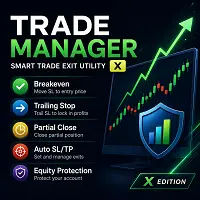
Kalifx Trade Manager is a smart order-management EA utility designed for traders who want faster execution from an on-chart panel and safer automated position management using break-even, trailing stop, partial close, auto SL/TP, and equity protection.
Core Goals
- Reduce manual execution errors
- Standardize risk per trade
- Lock profits consistently
- Protect account equity from abnormal drawdowns/floating loss
KEY FEATURES
A) ON-CHART ORDER PANEL (Optional)
A compact trading panel is displayed directly on the chart, allowing fast and controlled trade execution.
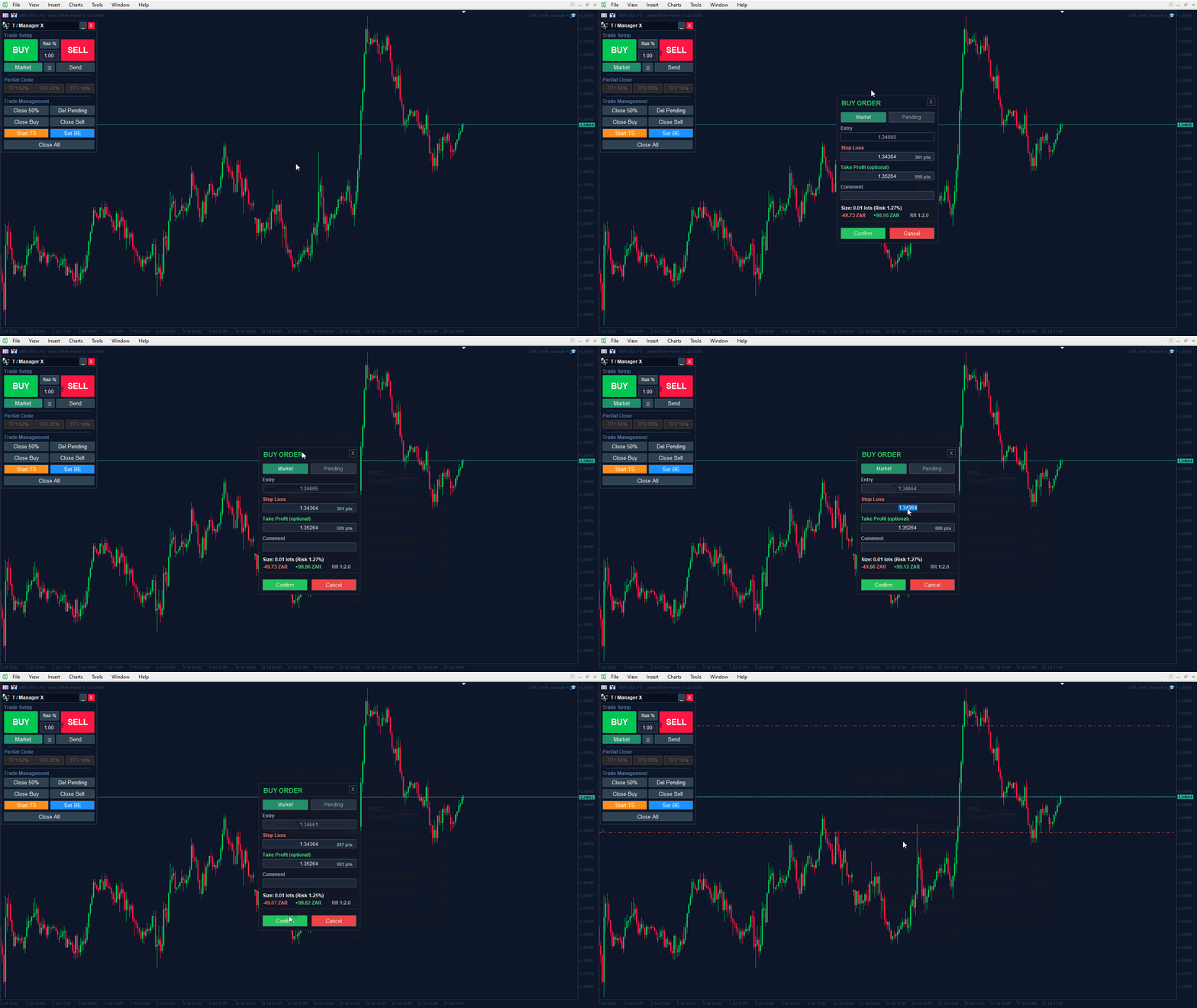
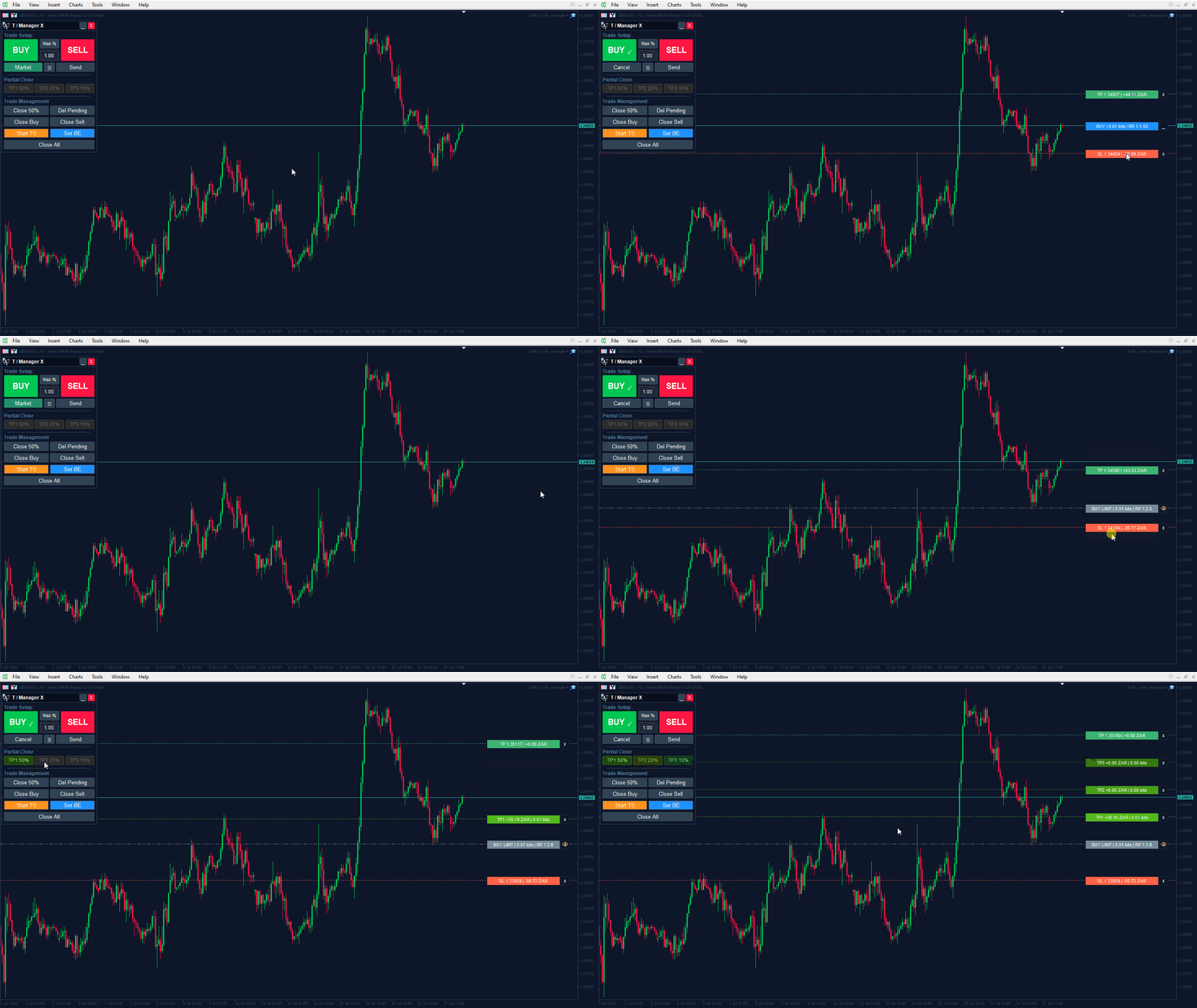
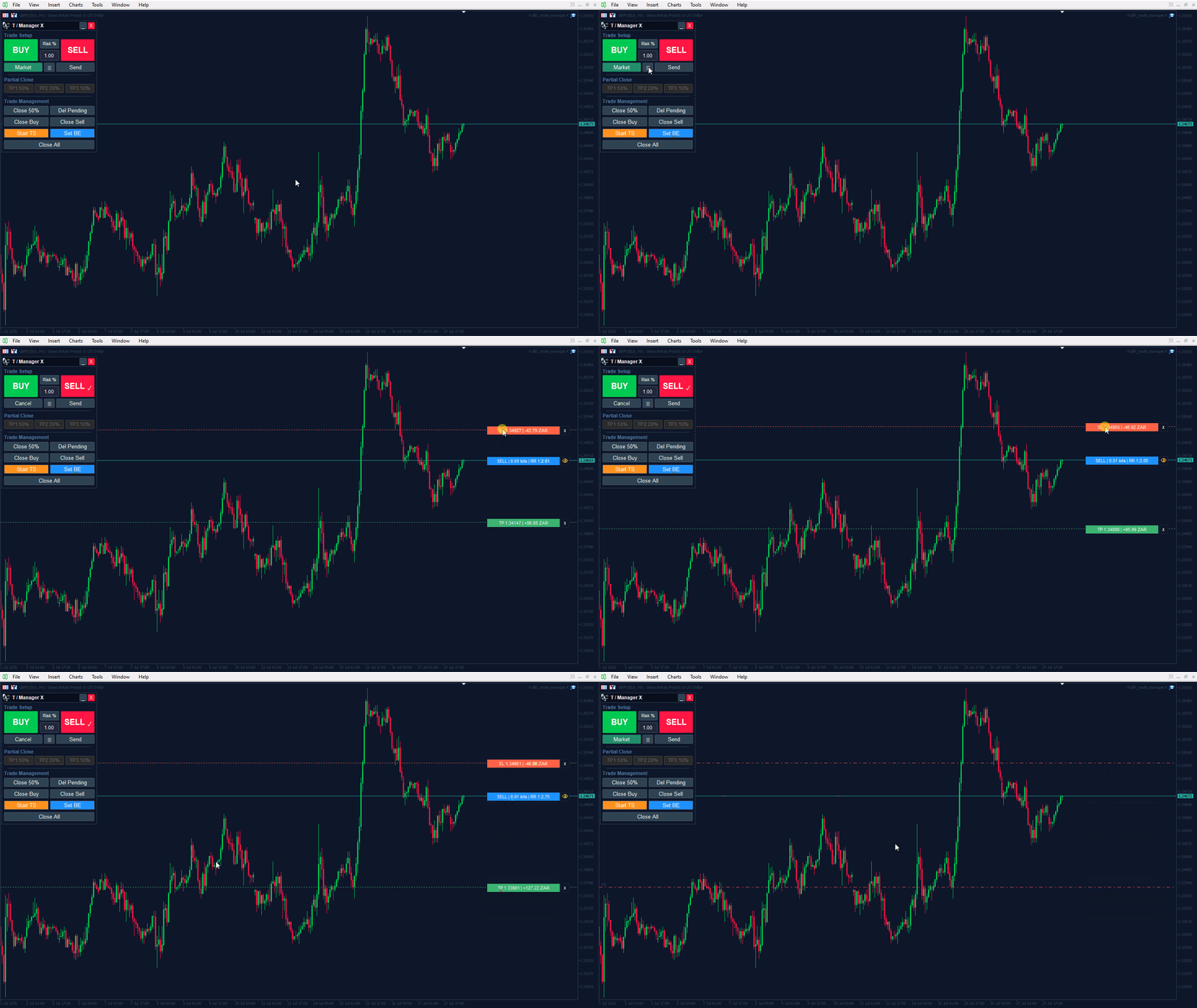
BUY / SELL Buttons: Click Buy or Sell to open the Order Window, where you can review and edit all trade parameters before placing the order.
Execution Mode Switch (Market / Pending): Easily switch between Market Execution and Pending Order placement — this can also be changed per-trade from the tabs inside the Order Window itself.
Risk Management Mode: Choose between Risk % sizing or Fixed Lot sizing. This can be switched at any time, including while the Order Window is open, so position sizing can be adjusted right up until you confirm the trade.
Editable Risk / Lot Input: Quickly adjust the desired risk percentage or fixed lot size directly from the panel.
Order Window: Clicking Buy or Sell opens a centered Order Window for that trade. While it's open, the rest of the panel is locked (Buy/Sell, Setup Lines, Send, Close All, etc. take no action) so a trade can't be triggered by accident — the Risk Management Mode switch is the one exception, and stays active so sizing can still be changed on the fly.
- Market / Pending tabs: Switch the order between a Market execution and a Pending order without closing the window.
- Entry Price: In Market mode this field mirrors the live Ask/Bid and is locked (read-only), since a market order simply fills at the current price. Switching to Pending makes it editable so you can set your own trigger price.
- Stop Loss / Take Profit: Fully editable fields, each showing the distance from Entry in points. The points readout steps aside while you're typing in the field and reappears once you're done.
- Comment: Optional custom text attached to the order.
- Live Size / Risk / Reward readout: Position size, risk %, risk amount, potential reward amount, and Risk:Reward ratio all recalculate automatically as Entry, Stop Loss, Take Profit, or the Risk Management Mode change.
- Confirm / Cancel: Confirm sends the order exactly as configured (Market or Pending); Cancel or the close (X) button dismisses the window without trading.
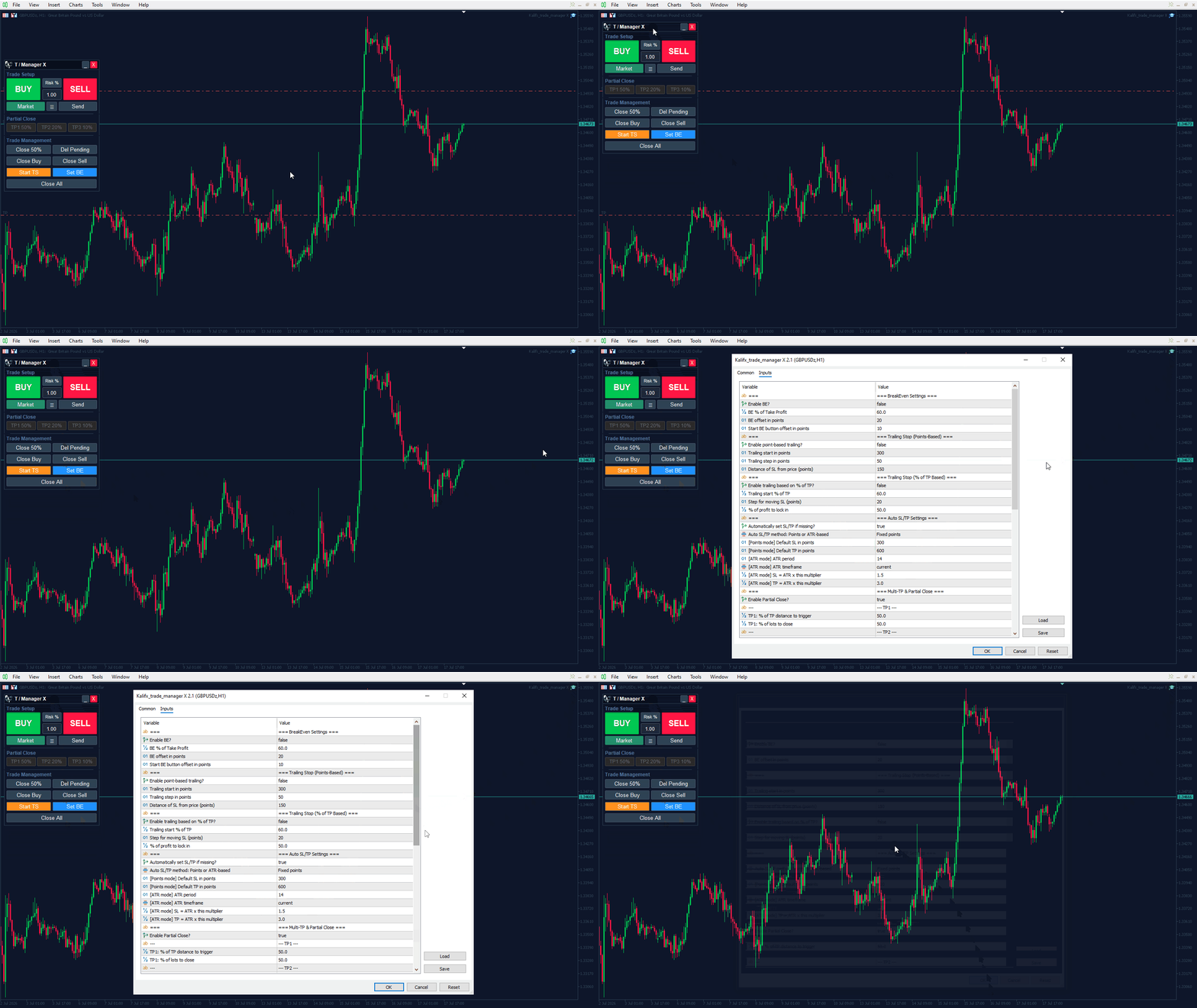
Management Control Panel (Optional): An additional on-chart panel can be enabled via the EA inputs, providing quick management actions for open positions.
- Close All: Closes all open positions on the current symbol.
- Close Buy / Close Sell: Closes all Buy or all Sell positions independently.
- Delete Pending: Instantly deletes all pending orders on the current symbol.
- Close %:Instantly closes a configured percentage of open positions
- Start TS: Immediately activates the trailing stop feature, regardless of the initial trailing stop settings.
- Set BE: Instantly applies Break-Even to all qualifying trades using the configured Break-Even settings.
B) AUTOMATED POSITION MANAGEMENT
- Auto SL/TP assignment if missing
- Break-even move based on % of TP progress
- Two trailing modes:
- Points-based trailing
- TP-progress (%) trailing with profit lock
- Partial close when target progress is reached
C) EQUITY & FLOATING LOSS PROTECTION
- Max drawdown % protection (from peak equity)
- Floating loss amount protection (account currency)
- Floating loss % protection (relative to balance)
- Optional trading halt after protection event
- Optional auto-resume next day
D) FILTERS / EXECUTION CONTROLS
- MagicNumber support
- Slippage/deviation controls
- Symbol-aware management logic
HOW TO USE (QUICK START)
Step 1: Attach EA to chart
- Open desired symbol chart
- Attach Kalifx Trade Manager X
- Enable AutoTrading / Algo Trading
Step 2: Choose order size mode
- Click MODE button to switch between Risk % and Fixed Lot
- Enter value in the panel edit box
Step 3: Prepare the order
- Click BUY or SELL to open the Order Window.
- Choose Market or Pending using the tabs at the top of the window.
- Review or edit the Entry Price (Pending mode only — Market mode always shows the live price), Stop Loss, Take Profit, and optional trade comment.
- Verify the live position size, risk, and Risk:Reward readout before placing the order — adjust the Risk Management Mode if needed, even without closing the window.
Step 4: Execute the order
- Click Confirm in the Order Window to place the order, or Cancel / close (X) to back out without trading.
Step 5: Let automation manage trade
- Break-even, trailing, partial close and protection rules run automatically
Note: Always optimize settings per symbol, spread, and volatility.
INPUT REFERENCE
BreakEven Settings
- Enable BE?
- BE % of Take Profit – % progress toward TP before BE triggers
- BE offset in points – Extra points beyond entry
Trailing Stop (Points-Based)
- Enable point-based trailing?
- Trailing start in points
- Trailing step in points
- Distance of SL from price
Trailing Stop (% of TP Based)
- Enable trailing based on % of TP?
- Trailing start % of TP
- Step for moving SL
- % of profit to lock in
Auto SL/TP Settings
- Automatically set SL/TP if missing?
- Default SL in points
- Default TP in points
Partial Close Settings
- Enable Partial Close?
- % of lots to close
- % of TP distance to trigger close
- close % button: % of lots to close
Equity Protection
- Enable equity protection?
- Max total drawdown (%)
- Enable floating loss protection?
- Max floating loss (currency)
- Max floating loss (% of balance)
- Stop new trades after trigger
- Auto resume next day
Order Panel Settings
- Show trading panel?
- Default startup mode (Risk % or Fixed Lot)
- Default Risk % value
- Default fixed lot value
- Panel X / Y position
- User interface refresh interval
- Enable Order Window confirmation? (if disabled, Buy/Sell execute immediately using the panel's current settings instead of opening the Order Window)
General Inputs
- Magic number (0 = manage manual trades)
- Deviation in points for orders
IMPORTANT NOTES
- Broker constraints may affect SL/TP placement and execution
- Always demo test before live trading
- No EA guarantees profits — manage risk responsibly